A guide to using Citymapper
Citymapper and Harvard University just teamed up 🤝
Our goal: make it as easy as possible to get where you need to go. We have loads of features to help with that goal, so here's a quick summary of our most useful features!
There's a lot to unpack here... let's get into it.
But first, a quick guide to your guide:
- General User Guide
- Navigation in a tap
- Get me around campus
- Save routes and stops
- Tips and Tricks
- Choose your adventure
- Nearby mode
- bikes
- Harvard Evening Van
- Evening Van
- SSO Login
Navigation in a tap
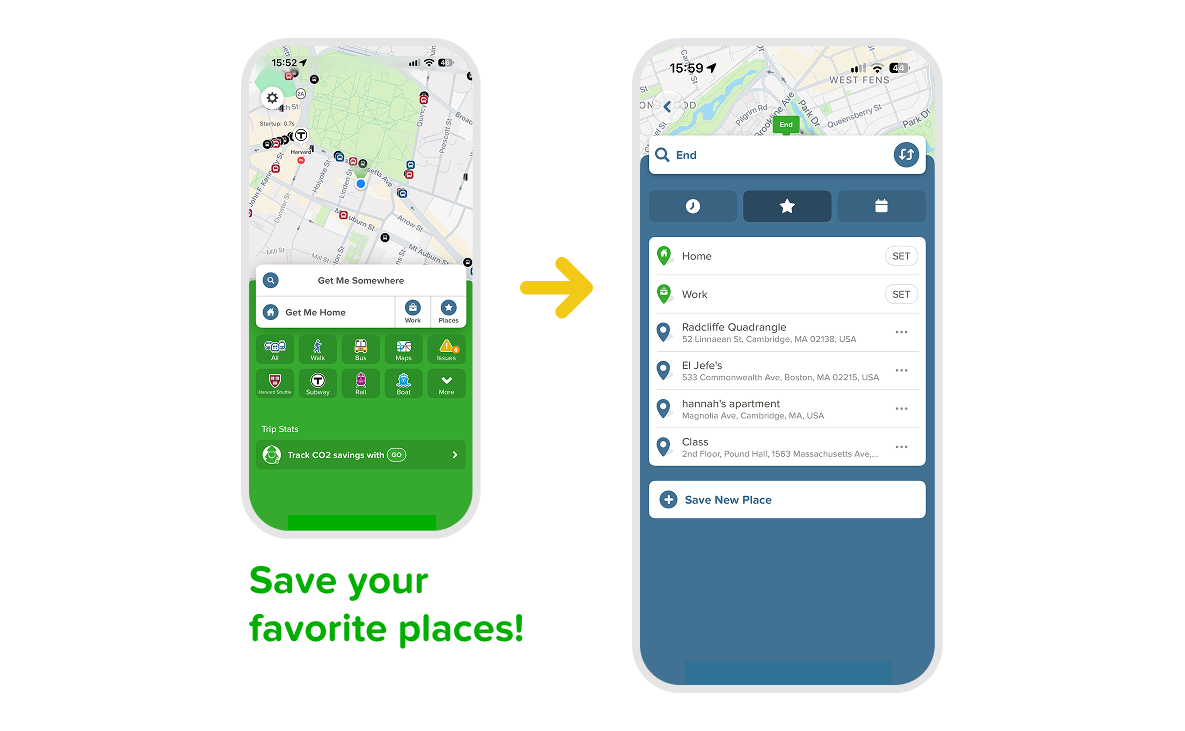
Need to get somewhere? Start by tapping on "Get me Somewhere" and see your journey options appear.
Use the "places" star on the home screen, to save your most frequent locations, like your best friend's apartment, Lamont Library, or even El Jefe's. Make it even easier to navigate to your most visited spots!
Getting around the campus
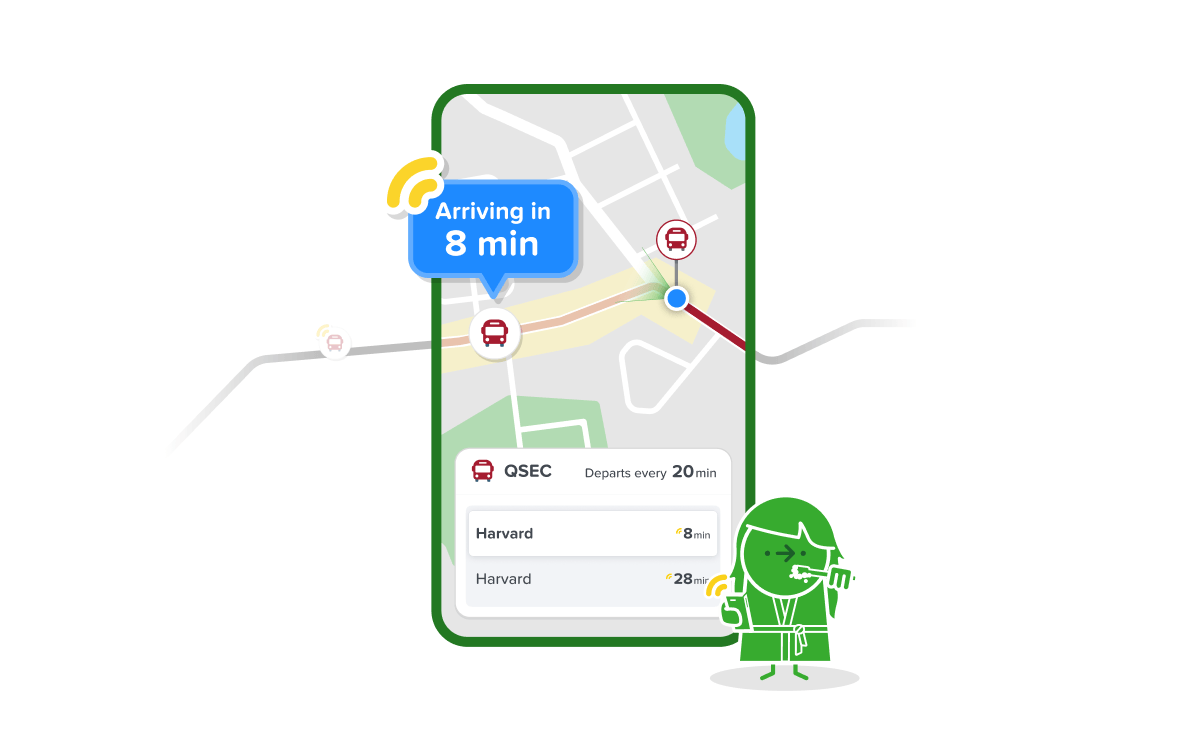
Trust issues with your bus being on time? Citymapper's got your back, with constant live updates 🚌
Wherever you plan a trip, you can see where your bus is on the map and your time of arrival at your destination. If your regular route is disrupted, Citymapper shows you alternative journey options too.
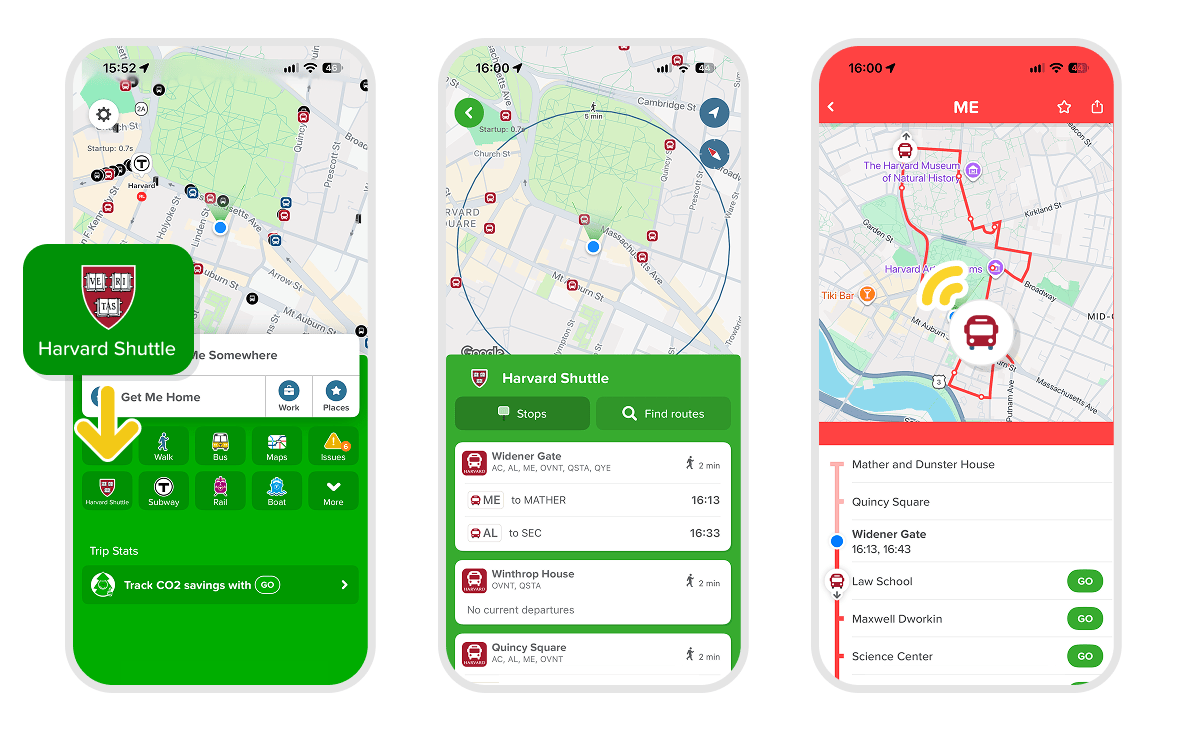
To see the location of your bus without planning a trip, tap on "Harvard Shuttle" on the home screen, select a stop followed by the bus route you want to track.
Live timings for MBTA buses, LMA buses, the T, Amtrak, and more are also available in Citymapper!
Save routes and stops
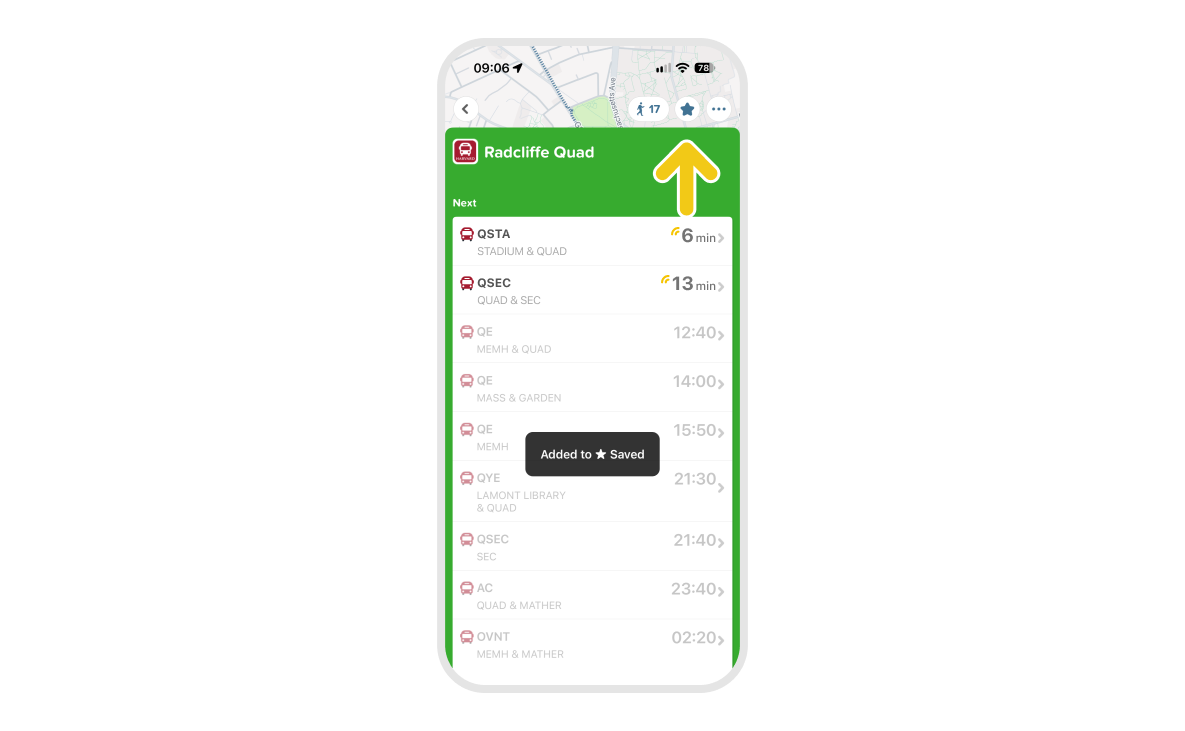
Take the shuttle from the same spot every day? Tap into the stop and hit the star icon in the top right corner. When you tap the 'saved' button on your home page, you should easily be able to see that stop and its next live departure times.
You can also save your favorite routes, or even your favorite trips!
Choose your adventure
Use Citymapper's Routing Powers to find the best route for you. Here are our favorite modes for students:
"Walk Less" sorts routes by the amount of time you have to spend outside. While "classic" mode suggests that you get off at the stop that saves you the most time, "walk less" will always suggest the stop closest to your destination. Perfect for a cold or rainy day! ❄️☔️

"Price" shows off the cheapest journeys available to you! If you want to filter your results to only Harvard Shuttles or Longwood Shuttles (the two free options for Harvard students), this is the easiest way to do it!
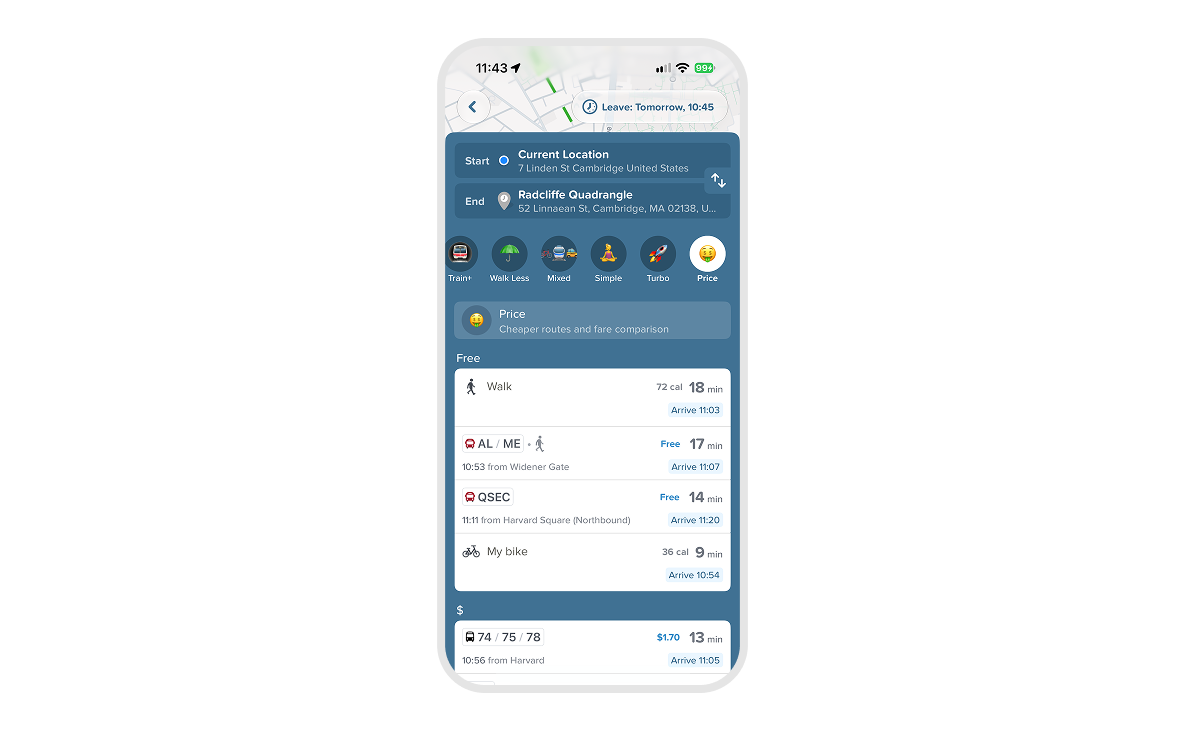
"Mixed" suggests public transportation in combination with other modes, which could be just what you need to get you where you are going in time.
Bikes, etc
Normal bikes. Electric bikes. Cabs. Rideshare. Hovercrafts. We have it all.
Pick a mode and get turn-by-turn instructions, which you can even play on your headphones to keep your eyes on the road (or sidewalk).
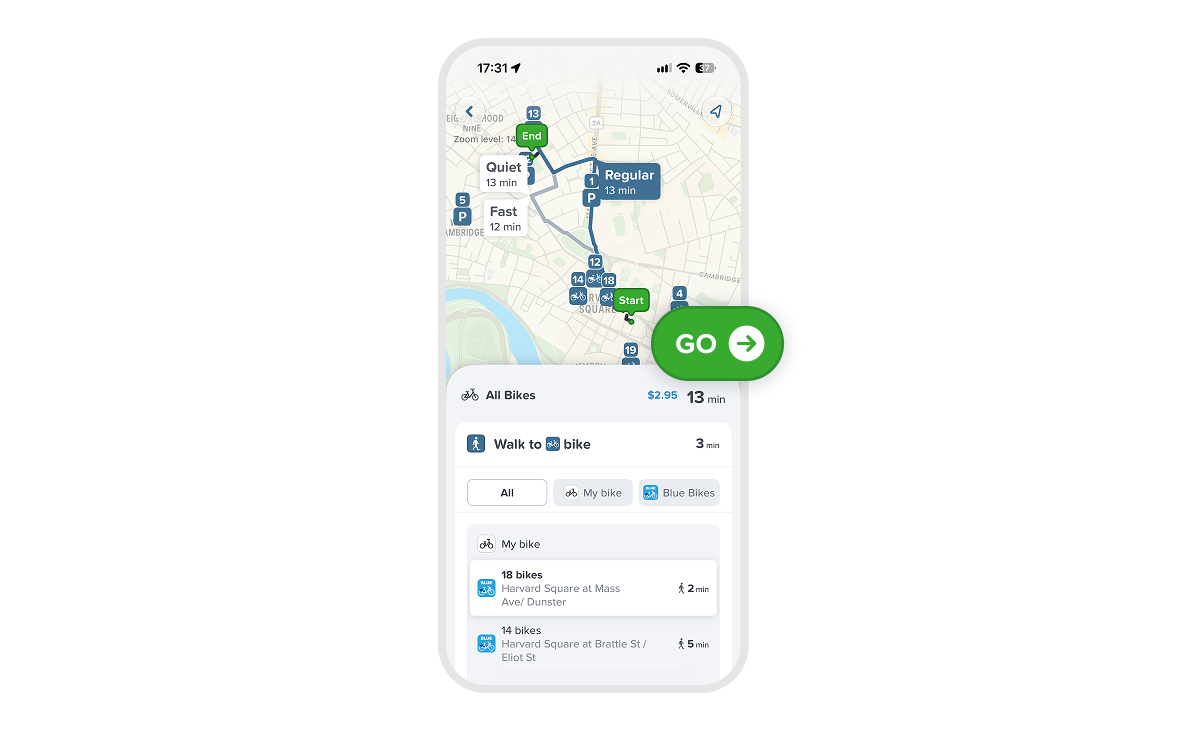
If you are using bikeshare, Citymapper will direct you to your nearest dock and show you how many bikes are left there.
For a bike trip, you can choose your own adventure and select between quiet, regular, and fast routes.
Nearby mode
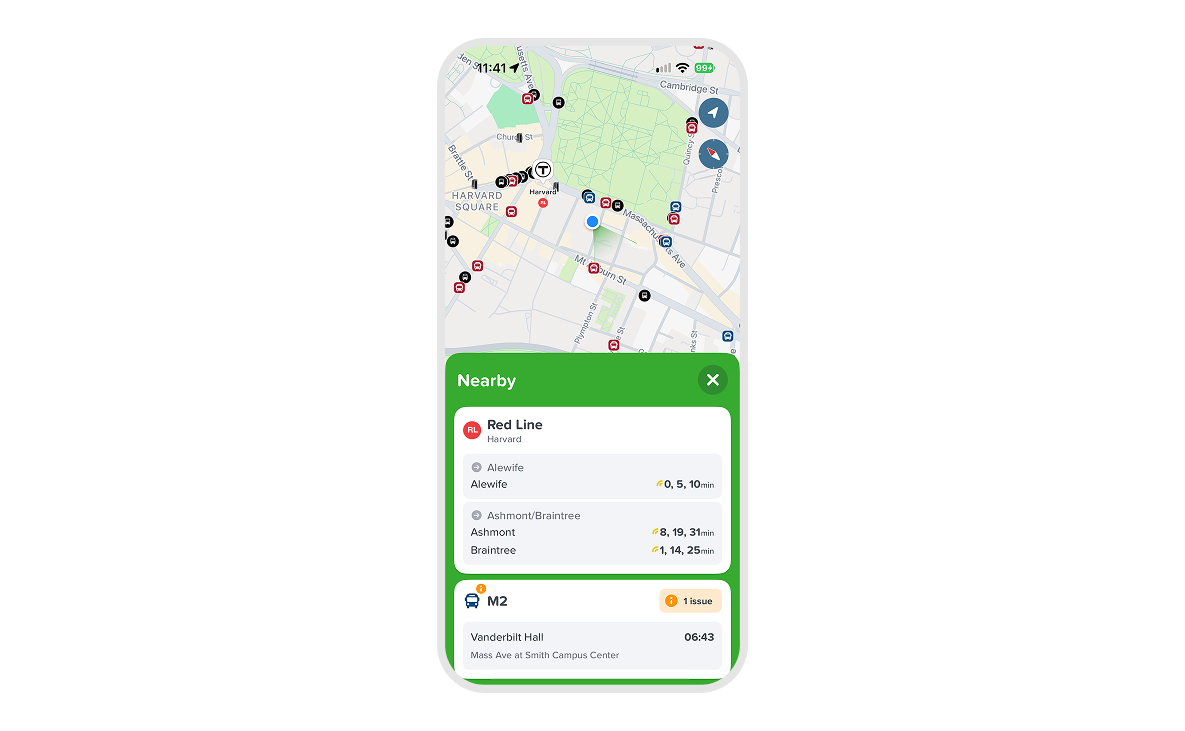
If you want to see the next arrival for any stop near you (whether shuttle, bus or train), all you have to do is swipe down the home page, and see the next departure for each line, broken down by stop and direction.
Harvard Shuttle or Harvard Evening Van?
Great question! Citymapper can show you both options side by side so you can compare ETA, price, and walking distances.
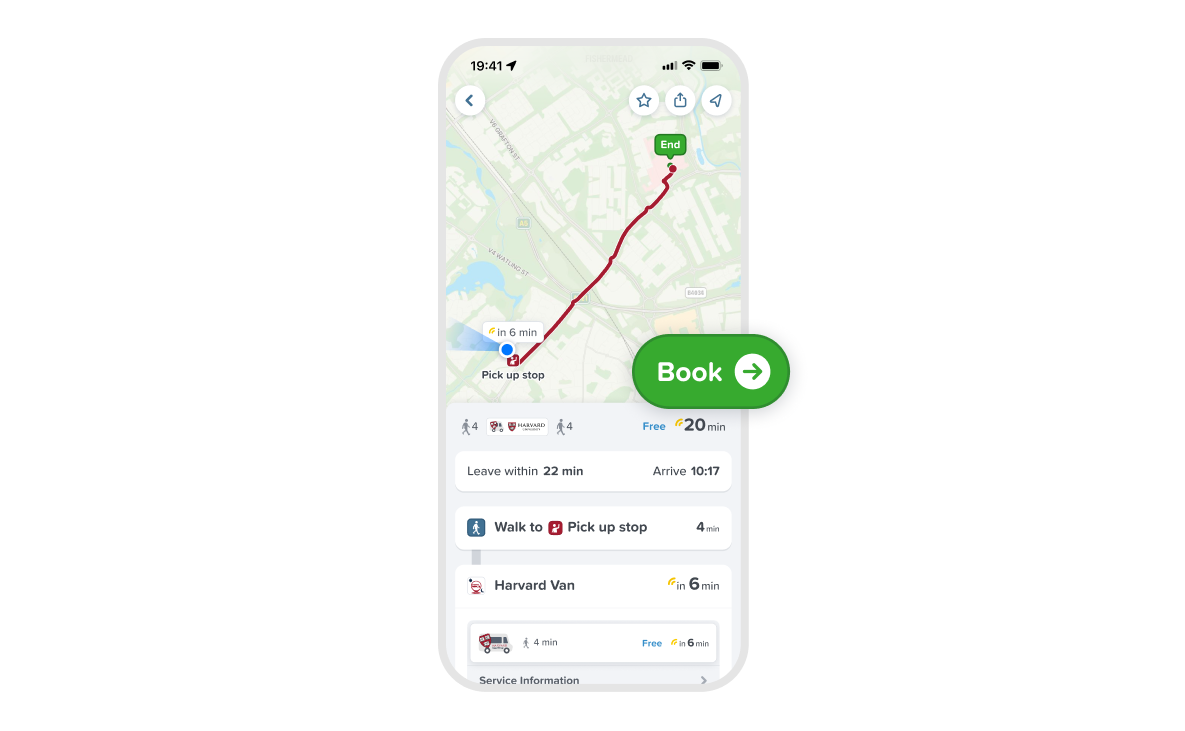
Plan your journey, and if an on-demand ride is an available option, it will appear under "Harvard Evening Van" below the Suggested section.
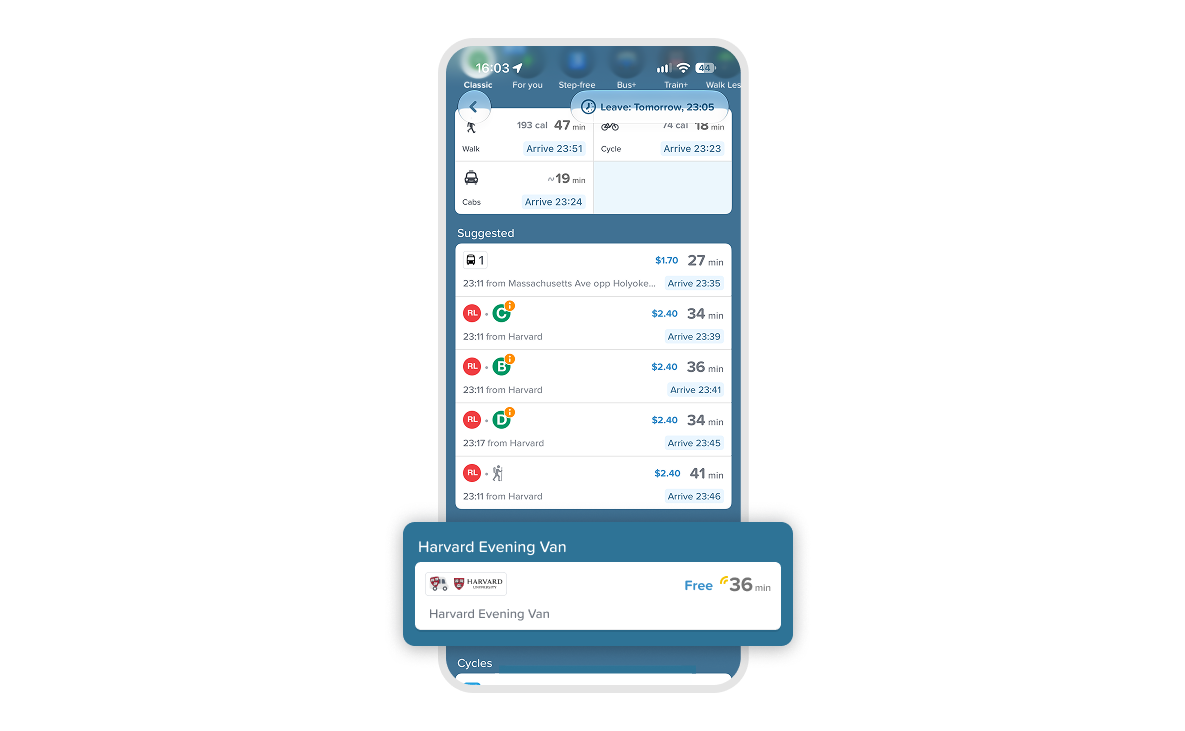
Tap on the journey to view details like wait time, time onboard, and walking directions to your pickup. With Citymapper, you can book your trip and track your driver as they approach you.
SSO login
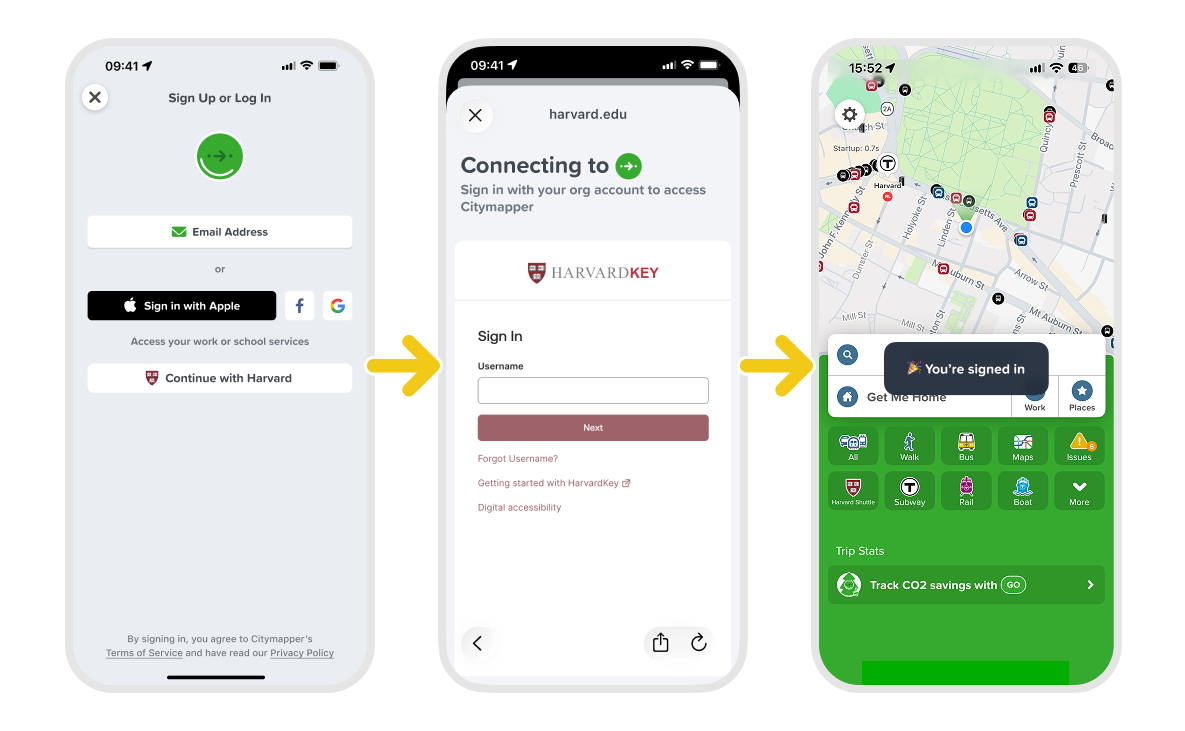
In order to see Harvard Evening Van in the app, you will have to log in with a verified Harvard account.
First, make sure you have your Harvard Key with SSO verification set up on your phone. Open up Citymapper and navigate to Settings in the top left, and tap on "Account". If you are in the Harvard area, you will see an option to continue with a HarvardKey, which you can use to sign in. Otherwise, choose "Email Address" to sign in with, and enter your Harvard email.
We hope you enjoy using Citymapper. If you want to keep us busy, feel free to submit feedback and requests in the app, so we can make the best Citymapper for you!
xoxo,
Citymapper Team